
How to Use QR Codes to Market Your KDP Book (Step-by-Step Guide)
Learn how to create and use QR codes to market your Amazon KDP books. From back cover placements to bonus content delivery, discover practical strategies that drive reader engagement.
Why QR Codes Are a Game-Changer for KDP Authors
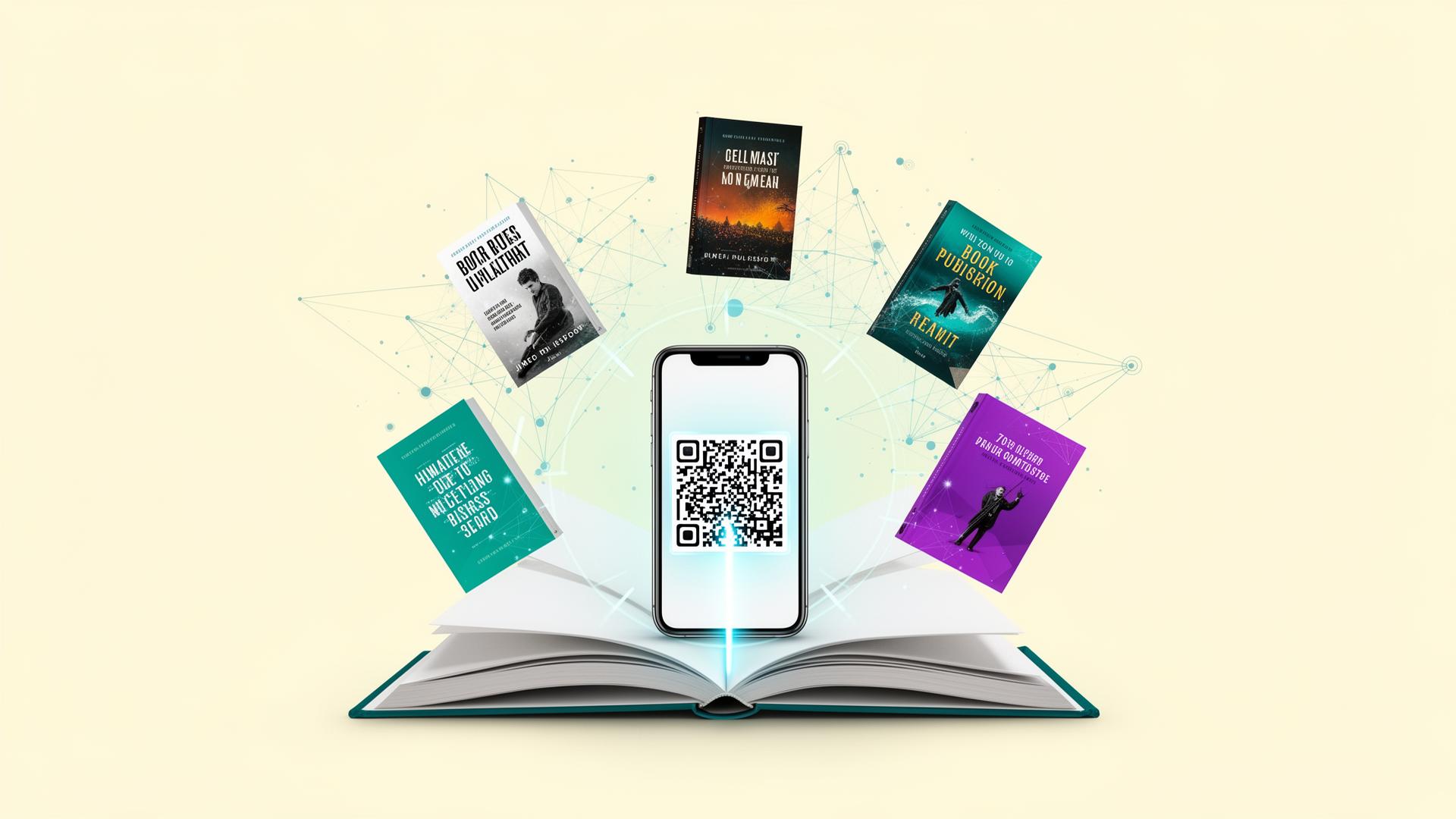
QR codes have evolved from novelty to necessity in book marketing. For self-published authors, they offer a direct bridge between your physical book and the digital world—no typing required.
When a reader scans your QR code, they're instantly transported to wherever you want them to go: your Amazon author page, a bonus chapter, your email signup, or your next book. It's frictionless marketing that works 24/7.
The best part? Creating QR codes for your books is completely free with our Book QR Code Generator.
How QR Codes Work (The Simple Version)
A QR code is essentially a visual URL. When someone points their smartphone camera at it, their phone reads the pattern and opens the encoded link automatically.
Modern smartphones don't require special apps—the built-in camera handles QR scanning natively on both iPhone and Android.
What you need to know:
- QR codes never expire (as long as the destination URL stays active)
- They work on printed materials—paperbacks, hardcovers, bookmarks, flyers
- Amazon KDP fully allows QR codes in your book interior and on covers
- They can link to any URL you choose
Step-by-Step: Creating Your Book QR Code
Here's exactly how to create a professional QR code for your KDP book:
Step 1: Choose Your Destination URL
Before generating your QR code, decide where you want readers to go. Common options include:
| Destination | Best For | Example URL |
|---|---|---|
| Amazon product page | Driving sales & reviews | amazon.com/dp/B0XXXXXXXX |
| Author website | Building your brand | yourname.com |
| Email signup | Growing your list | yourname.com/bonus |
| Bonus content | Reader engagement | yourname.com/book-extras |
| Other books | Cross-promotion | amazon.com/author/yourname |
Step 2: Generate Your QR Code
- Open our free Book QR Code Generator
- Paste your destination URL
- Customize the colors to match your book's design
- Choose a style (square, dots, or rounded)
- Optionally add your logo or author photo
- Click "Generate QR Code"
Step 3: Download and Test
- Download the QR code as PNG (for digital use) or SVG (for print)
- Critical: Test the QR code with your phone before adding it to your book
- Scan from multiple angles and distances to ensure it works
Step 4: Place It in Your Book
Insert the QR code image into your manuscript using your design software (Canva, InDesign, Word, etc.). More on placement strategies below.
Where to Put QR Codes in Your Book
Strategic placement matters. Here are the most effective locations:
Back Cover (Most Popular)
The back cover is prime real estate. Readers naturally look here before purchasing, making it the perfect spot for a QR code that links to:
- Reviews or testimonials (social proof)
- A sample chapter or preview
- Your Amazon author page
- A related book series page
Pro tip: Place your QR code in the bottom-right corner, away from the ISBN barcode to avoid confusion.
Interior Pages
Copyright page: Link to your website or series landing page. It's subtle but discoverable.
About the Author section: Perfect for linking to your author website, social media, or email signup. Readers who finish your book are your warmest prospects for joining your list.
Bonus content page: Create a dedicated page near the end that offers exclusive content via QR code. Example: "Scan for a free bonus chapter!" or "Get the companion workbook."
Chapter endings: In non-fiction, link to supplementary resources, videos, or tools related to that chapter's topic.
Bookmarks and Inserts
Create printed bookmarks with QR codes as marketing materials:
- Hand them out at events
- Include them in book signings
- Leave them at libraries or bookstores
7 High-Impact QR Code Marketing Strategies
1. Drive Reviews with a Direct Link
Getting reviews is one of the hardest parts of self-publishing. Make it effortless by linking directly to your book's review section.
How to create the link:
- Go to your book's Amazon product page
- Scroll to "Customer Reviews"
- Click "Write a customer review"
- Copy that URL
- Generate your QR code with that link
Now readers can scan and review in under a minute.
2. Deliver Exclusive Bonus Content
Nothing builds reader loyalty like exclusive content. Ideas include:
- A bonus chapter or alternate ending
- Character artwork or maps
- A printable worksheet or planner page
- A behind-the-scenes author note
- A discount code for your next book
Create a simple landing page (using Carrd, Mailchimp, or your own site) to host the content, then generate a QR code linking there.
3. Grow Your Email List
Your email list is your most valuable marketing asset. Use QR codes to capture readers:
The formula:
- Offer something valuable (free short story, bonus chapter, checklist)
- Create a landing page with an email signup form
- Deliver the freebie automatically after signup
- Generate a QR code to that landing page
- Add the QR code to your book's back matter
A reader who enjoyed your book enough to finish it is highly likely to join your list for more.
4. Cross-Promote Your Other Books
Have a series? Link to your Amazon author page or a custom landing page showcasing all your books.
For series authors: Create a "Series Reading Order" page and link it via QR code. Readers who discover you mid-series will thank you.
5. Create Scannable Bookmarks
Design a bookmark with:
- Your book cover image
- A compelling CTA ("Scan for bonus content!")
- A QR code linking to your email signup or next book
Print them affordably through services like Vistaprint or Canva Print, then distribute at:
- Book signings
- Local libraries
- Community events
- Indie bookstores
6. Add Video Content
Link your QR code to a YouTube video or Vimeo page:
- Author reading excerpts
- Character introductions
- Behind-the-scenes creation story
- Pronunciation guide for fantasy names
Video builds a personal connection with readers that text alone can't achieve.
7. Collect Reader Feedback
Create a simple Google Form or Typeform survey and link it via QR code. Ask readers:
- What they enjoyed most
- Which character was their favorite
- What they'd like to see in your next book
This feedback is marketing gold for future releases.
Best Practices for Print-Quality QR Codes
Size Matters
Minimum size: 1 inch × 1 inch (2.5 cm × 2.5 cm)
Any smaller and smartphone cameras may struggle to read the code, especially in low light. For back covers, aim for 1.25-1.5 inches.
Contrast Is Critical
High contrast between the QR code and background ensures readability. Best combinations:
- Black QR code on white background
- Dark navy on white/cream
- White QR code on dark background (inverted)
Avoid low-contrast combinations like gray on white or light blue on cream.
Test Before Publishing
Always test your QR code on your proof copy. What looks perfect on screen may print differently. Order a proof and scan the code to verify it works before approving your final version.
Use SVG for Print
When downloading your QR code from our generator, choose SVG format for print applications. SVG is vector-based, meaning it scales perfectly to any size without losing quality.
Common Mistakes to Avoid
Linking to Broken URLs
If your website changes or you delete a page, your QR code becomes useless—permanently printed in your book but going nowhere.
Solution: Use a URL shortener that allows you to change the destination later (like Bitly or Rebrandly), or commit to maintaining your linked pages indefinitely.
Making QR Codes Too Small
A QR code that's too small to scan is worse than no QR code at all. It signals amateur publishing. When in doubt, go bigger.
Forgetting to Test
This seems obvious, but many authors skip testing on the actual printed proof. Lighting, paper texture, and ink absorption all affect scannability. Test it.
Placing QR Codes Near ISBN Barcodes
Don't put your QR code too close to the ISBN barcode—readers (and scanners) may confuse them. Maintain at least 0.5 inches of separation.
Using QR Codes Without Context
A QR code without a call-to-action is a missed opportunity. Always include text explaining what the reader gets:
- ✅ "Scan for a free bonus chapter"
- ✅ "Get exclusive reader content"
- ✅ "Join my reader community"
- ❌ Just a QR code with no explanation
Tracking Your QR Code Performance
Want to know how many people actually scan your QR codes? Use trackable links:
Option 1: UTM Parameters
Add UTM parameters to your destination URL before generating the QR code:
yoursite.com/bonus?utm_source=book&utm_medium=qr&utm_campaign=book1
Then view the traffic in Google Analytics.
Option 2: Link Shorteners with Analytics
Services like Bitly, Rebrandly, or Short.io provide click tracking. Create your short link, then generate a QR code for that shortened URL.
Option 3: QR-Specific Platforms
Tools like QR Code Generator PRO or Beaconstac offer built-in analytics for tracking scans by date, location, and device.
Calculate Your Marketing ROI
Smart marketing is data-driven marketing. Before you finalize your QR code strategy, run the numbers on your book's earning potential.
Use our Amazon KDP Royalty Calculator to understand:
- How much you earn per sale
- Your break-even point for marketing spend
- Profit margins at different price points
Then use our BSR Calculator to estimate how many sales you need to reach bestseller status.
Get Started Today
Creating a QR code for your book takes less than 60 seconds:
- Open our free Book QR Code Generator
- Paste your destination URL
- Customize colors and style
- Download and add to your book
It's one of the simplest, most cost-effective marketing tactics available to self-published authors. And unlike paid ads, once it's printed, it works forever.
👉 Create your free book QR code now — ready in seconds, no signup required.
Related Reading
Topics
Ready to Run the Numbers?
Put this knowledge into action. Calculate your potential royalties before you publish.